
5 Checks for a Home Office That Can Handle Short Power Outages
A short outage is easier to manage when you know which devices matter, how much power they need, and how you will stay connected. This guide walks through those decisions in a practical order.
Start with the equipment you actually use, then build and test a setup you can follow when the lights go out.
1. List the Work Equipment and Tasks That Can’t Wait
Start with a physical inventory. Write down every device that has to stay running for you to keep working. A standard home-office list typically includes a laptop, a Wi-Fi router, a cable or DSL modem, and a smartphone for hotspot fallback.
Next to each device, note the wattage listed on its power adapter, label, or product documentation. Record the actual devices you plan to run, because their requirements feed directly into your outage checklist.
2. Choose a Computer Built for the Work You Actually Do
A laptop can provide short-term battery power during an outage, but its useful runtime and charging needs depend on the specific model and workload. Compare the requirements of your current computer with the work you need to complete.
For options, consider PCLiquidations’ refurbished Dell laptop for a flexible home office. The collection includes refurbished Dell models with options such as Intel Core i5 or i7 processors and SSD storage, with transparent condition grading.
Processor generation, memory, storage, operating system, and the applications you use all affect performance. Review the individual model’s specifications to make sure they match your everyday workload.
3. Calculate Your Combined Power Draw and Required Runtime
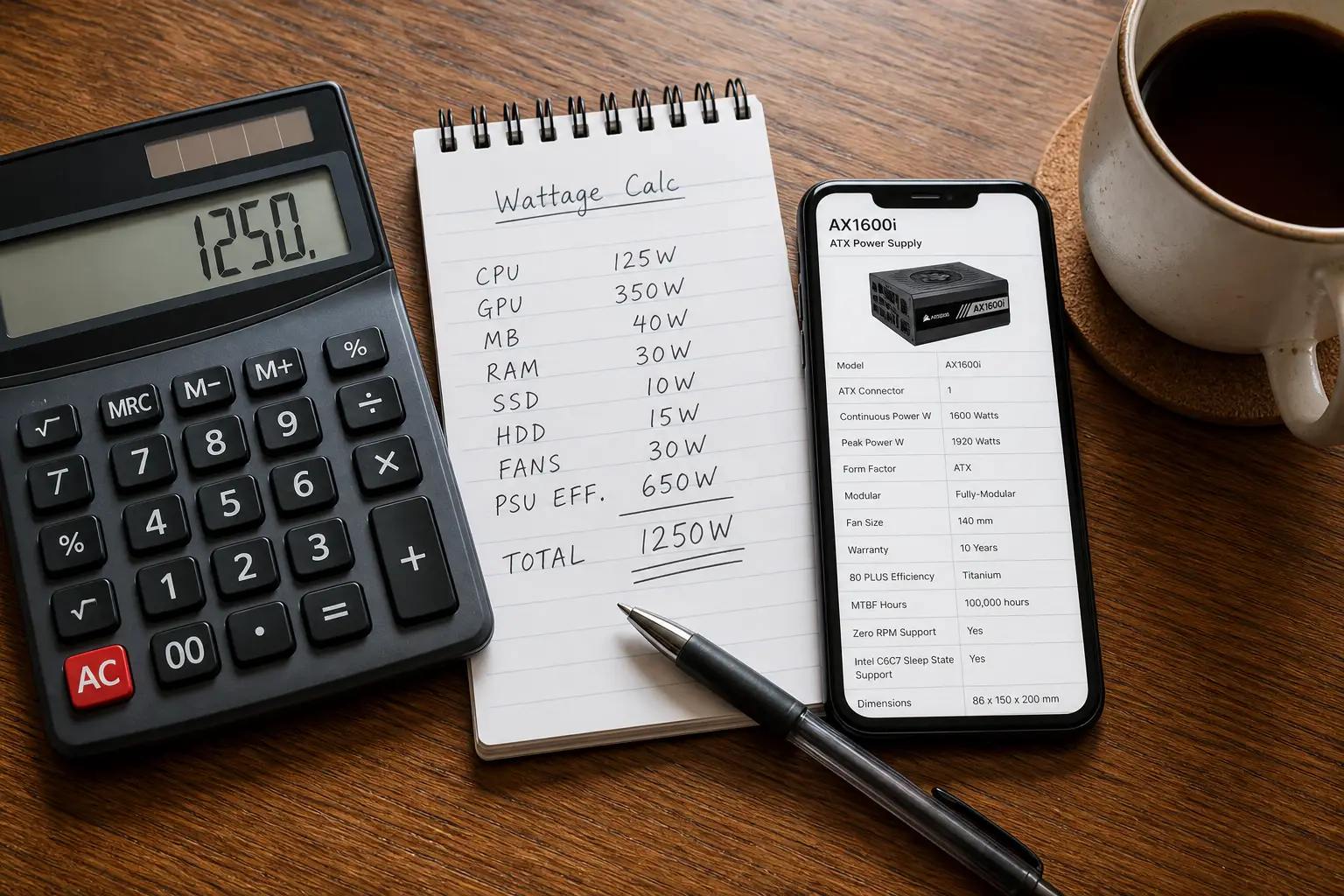
Add the manufacturer-rated or measured wattage of every essential device on your list. Once you establish this target, a Jackery power station from Off-Grid Source for home-office backup lets you compare models by battery capacity, inverter output, and solar-input specifications.
A 72-watt combined load running for four hours requires 288 watt-hours of energy delivered to your devices. Compare that target with the selected model’s published capacity, output limits, and estimated runtime for your intended load.
Compare battery capacity, continuous output ratings, and output port types across models before making a final decision. Continuous output dictates how much power the unit can deliver simultaneously, so it must exceed the combined draw of all connected devices.
If you plan to recharge with solar panels, confirm that the panel connector, voltage, current, and maximum solar input meet the power station’s published requirements.
If you’d rather not run extension leads off a power station, an electrician can fit a dedicated office circuit or a generator inlet so the backup plugs straight into the room.
Use manufacturer-approved equipment or panels explicitly listed as compatible rather than assuming that cross-brand hardware will work safely.
|
4. Confirm Your Modem, Router, and Internet Service Connections
Check the rated power needs of your modem and router against the selected station’s output limits. Keep the needed power adapters and cables together, and identify the correct ports before an outage.
Photograph the necessary cable configuration and store the picture on your phone to eliminate a frustrating search in the dark.
Backup power can keep local equipment running, but it cannot keep an internet provider online. Build an alternative connection plan around the service available where you work.
A smartphone hotspot may provide an alternative connection when mobile service is available. A dedicated hotspot can be another option; compare coverage, plan limits, device power needs, and setup steps before relying on either one.
For frequent or extended outages, satellite internet may be another option where service is available, but it has its own equipment, power, and service requirements. Verify that the selected station has the output ports your devices require.
5. Save Your Work, Test the Setup, and Keep a Simple Checklist
The most revealing step you can take before an actual outage involves simulating one. Plug every essential device into the station and launch a real work session.
Observe how the station performs under actual load while running video calls and active web browsers. Watch whether the laptop charges normally and if the output wattage display behaves as expected.
This physical test surfaces port compatibility gaps and missing cables while hardware stores remain open. Enable the saving or auto-save option available in each key application, and confirm how it works before an outage.
Save important work regularly and confirm that your backup method works for the applications you use.
Create a one-page physical checklist and keep it near your workstation. It should include the following details:
- Essential devices and their approximate wattage requirements
- Power station location and current charge level
- Hotspot plan details, including carrier and activation steps
- ISP contact number for reporting provider-side outages
- Auto-save settings confirmed in all key applications
- Laptop battery fully charged before forecasted storms
Follow the selected power station’s published storage, charging, and maintenance instructions. Check its charge level before periods when an outage is more likely.
Use the manufacturer’s instructions to decide when and how to recharge the unit. Test runs can reveal missing cables, incompatible ports, or configuration gaps before an outage.
Build a Practical Outage Plan
Build your plan around the devices and tasks that genuinely cannot wait. Choose a computer and backup-power option whose published specifications fit that setup.
Calculate the expected load, then test the complete setup before you rely on it. Keep the necessary cables, connection instructions, and one-page checklist beside your workstation.